

Intelligent answer analysis
AI analyzes handwritten answers for content accuracy, structure and completeness.
Say goodbye to manual valuation! Upload PDFs of student answer sheets, the question paper and the answer key — RedInk’s AI instantly analyzes, corrects and gives feedback, saving you valuable time and ensuring accurate evaluations. Perfect for teachers, educators and tutors.
Payment and delivery: download the app from the Google Play Store or the Apple App Store for FREE.
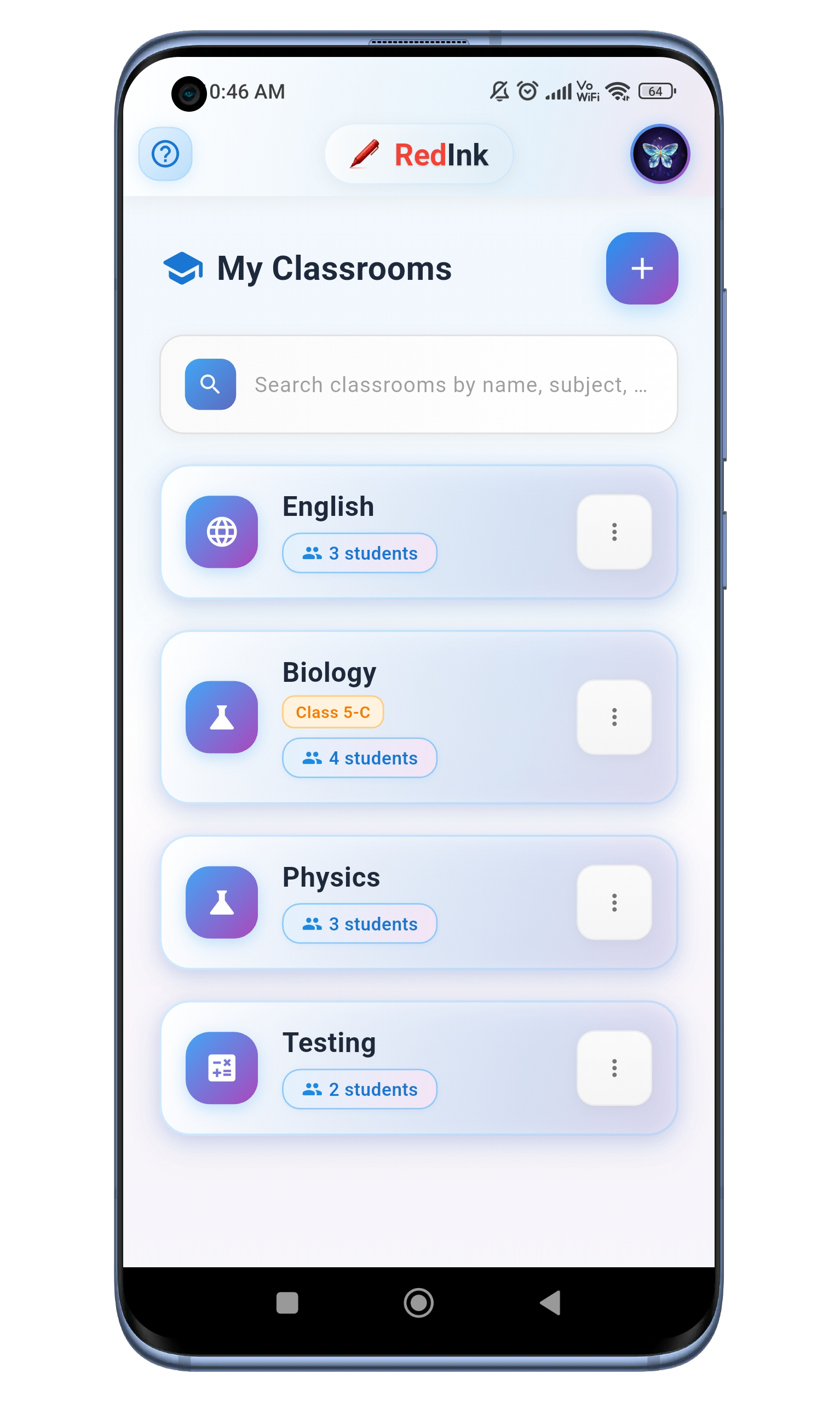
From reading handwriting to class performance reports, RedInk handles the busywork of valuation so you can focus on teaching.
AI analyzes handwritten answers for content accuracy, structure and completeness.
Machine learning algorithms provide consistent and fair scoring based on rubrics.
Advanced OCR technology converts handwritten text to digital format.
Instant suggestions for improvement while grading.
Evaluates grammar, vocabulary and presentation.
Specialized algorithms for different subjects (Math, Science, Literature).
Access your work from any device.
Students can view detailed feedback on their performance.
Teachers can download class performance reports as well as an individual performance report for each student.
RedInk AI’s answer script evaluation technology, featured in leading publications and media channels.
RedInk AI’s answer script evaluation technology covered by the leading Malayalam daily.
Watch RedInk AI’s innovative answer script evaluation technology covered by 24 News Malayalam.
Screenshots of the RedInk AI-powered answer script evaluation app. Select a screen to view it full size.
Answers to the most common questions about RedInk AI-powered answer script evaluation. If your question is not answered here, please feel free to contact us.
Step-by-step guides for teachers and students, plus how to scan answer sheets for the best AI evaluation results.
Tap the “Login as a Teacher” button. After logging in, you’ll be on the “My Classrooms” screen. From there, tap the “Create Classroom” button.
Tap the ‘Students’ tab in the bottom navigation bar to go to the students page. To add new students, tap the ‘+’ icon in the top right corner of the app bar.
Tap the “Show Join Code” button in the pop-up to get the classroom’s join code. Use the “Share” button to send the code to students via WhatsApp. After sharing, go to the “Exams” tab to create a new exam.
On the Exams screen, tap the “Create First Exam” button. Enter the exam’s name and choose how to create the answer key:
Tap the “Save Answer Key and Proceed” button to save the answer key to the cloud. For Upload Mode, the question paper with the answer key should follow a specific format in PDF.
Note: image valuation may not be correct.
After uploading, the new exam appears in the Examinations screen list. Tap it to view the exam details and upload student answer sheets.
After you upload a student’s answer sheet, the AI evaluates it and shows the score in the student’s list tile. Tap the tile to open a pop-up with options to “View Results” or re-upload the paper, then tap “View Results” to see the detailed results.
The Student Results screen shows the student’s marks and percentage, with overall feedback from the AI and specific feedback for each answer.
Total Students who took the exam, Pending and Valuated papers, Total Marks possible, and the class Average Percentage and Average Marks.
RedInk automatically identifies the concepts students struggled with most — for example Diffusion, Concentration Gradients and Passive Transport Mechanisms.
A bar chart shows how many students (y-axis) fall into each performance bracket (x-axis):
Use this screen to quickly assess your class’s overall performance, spot areas that need more attention, and see how individual students are doing relative to their peers.
Log in to your student portal using your credentials to view your evaluated papers.
Fill in the required fields — name, roll number, class and division — then tap the blue “Complete Profile” button at the bottom of the screen.
You are now a member of the classroom and can view your exam results.
Learn how to properly scan answer sheets for the best AI evaluation results.
Install Adobe Scan from your app store. It’s free and provides high-quality document scanning.

Place the answer sheet on a flat surface with good lighting. Make sure the entire document is visible.
Tap the capture button. Adobe Scan automatically detects the document’s edges and enhances the quality.
For multi-page answer sheets, tap “Keep Scanning” to add more pages. Scan every page of the answer booklet.
Review the scanned pages, adjust the crop if needed, and make sure the text is clear and readable. When you’re happy, tap “Save PDF”.
After saving the PDF, you’ll see a list of your scans. Tap the ‘More’ (three vertical dots) button next to your recent scan.
In the menu that appears, select “Copy to device” to save the PDF to your phone’s storage.
Choose the folder for the PDF and tap “SAVE”. The file is now on your device and ready to upload to RedInk.
Follow these tips for AI-ready scans.
RedInk AI is free on Google Play and the App Store, or use the web version in your browser.